Elgato Stream Deck
Two ways to use these layouts: choose Stream Deck, XL, or Neo above the desktop pad, or install the plugin for a physical Elgato controller. The on-screen layouts need no hardware or plugin.
The plugin and starter layouts are not physically tested or published to the Elgato Marketplace. Automated tests cover packaging, pairing, and actions, not installation on real hardware. Use Pad-Lattice 0.2.0 or newer.
One Session key represents one Codex conversation (an agent). Its name and color strip identify the session; the glyph shows its current state, even when it is not selected. Press the key to select it. The white border marks which session the separate Approve, Reject, and Stop keys will control.
Try the layout in your browser with simulated sessions. This browser preview is not hardware validation.
MK.2-style example, not physically tested. You choose the key positions.
- One session per key
- Implement, Review, and Tests are three separate Codex conversations. Press one to select it.
- Identity and state
- Magenta identifies Review. Its amber exclamation means approval is needed, even before you select it.
- White border: selected
- Review is selected here. Another session asking for approval does not change that selection.
- Action keys name their target
- Approve and Reject apply only to Review. Stop is dim and unavailable; unused keys can host other plugins.
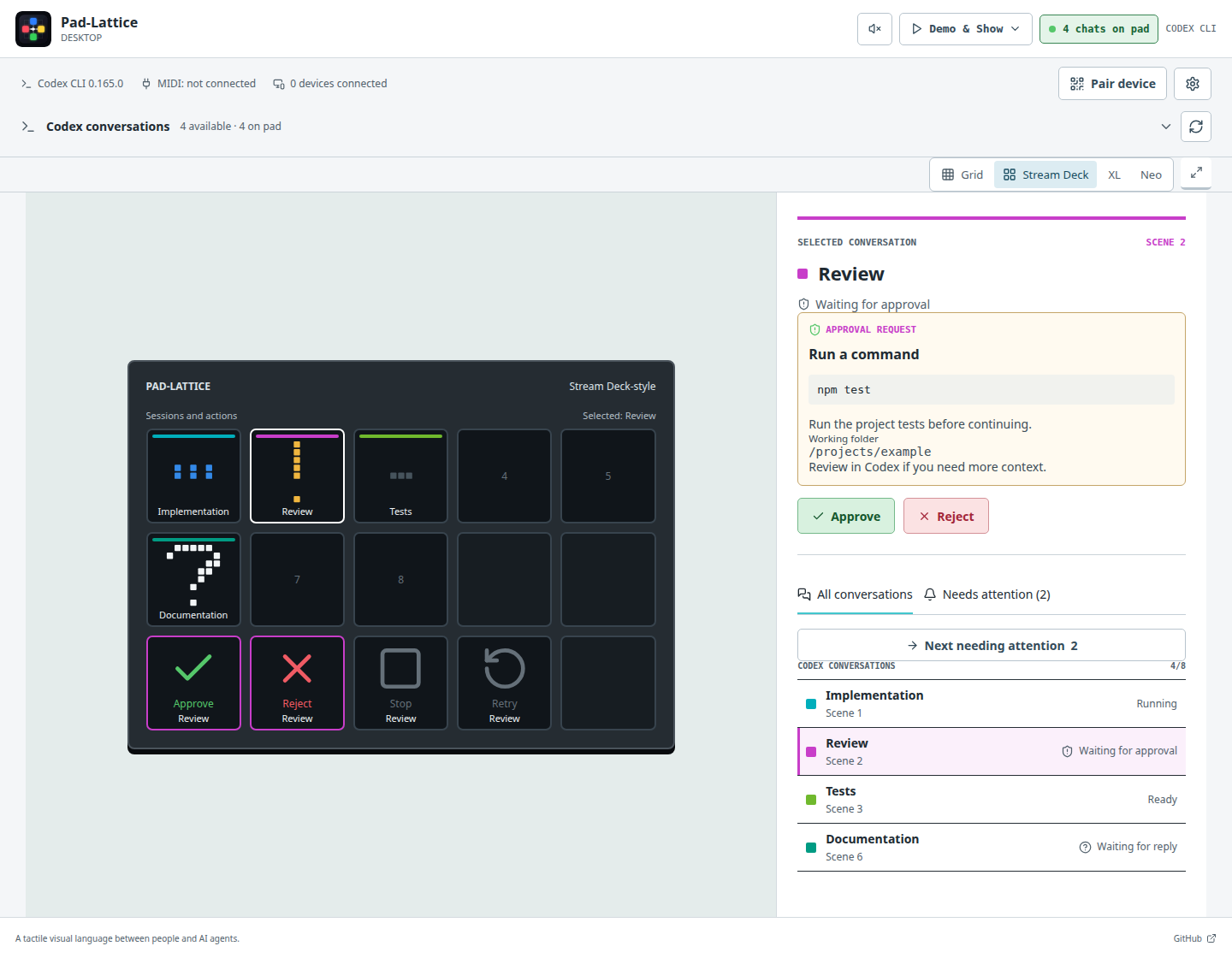
Desktop screenshot with simulated chats, not a photograph of tested hardware.
In this example, top keys select sessions; bottom keys act on the selected session. Review's magenta strip identifies it; the amber exclamation means it needs approval. Select Review, read its request in Codex, then press Approve or Reject with Review shown beneath the action name.
The included Pad-Lattice - 15 keys profile uses this arrangement: eight session keys, then Approve, Reject, and Stop on the bottom row. It is editable and does not replace or automatically switch away from your current profile.
Stream Deck XL
The XL profile has all eight sessions on the first row and the three actions below. Empty keys can be used for other plugins.
Stream Deck Neo
Neo uses two pages: sessions 1–5 on the first and 6–8 on the second. Approve, Reject, and Stop stay on both pages and always name the selected session. Use Neo's page controls to change pages.
Try the Neo layout. The desktop and playground Neo views mark an off-page attention count beside the page arrow. This indicator is not part of the physical Neo profile.
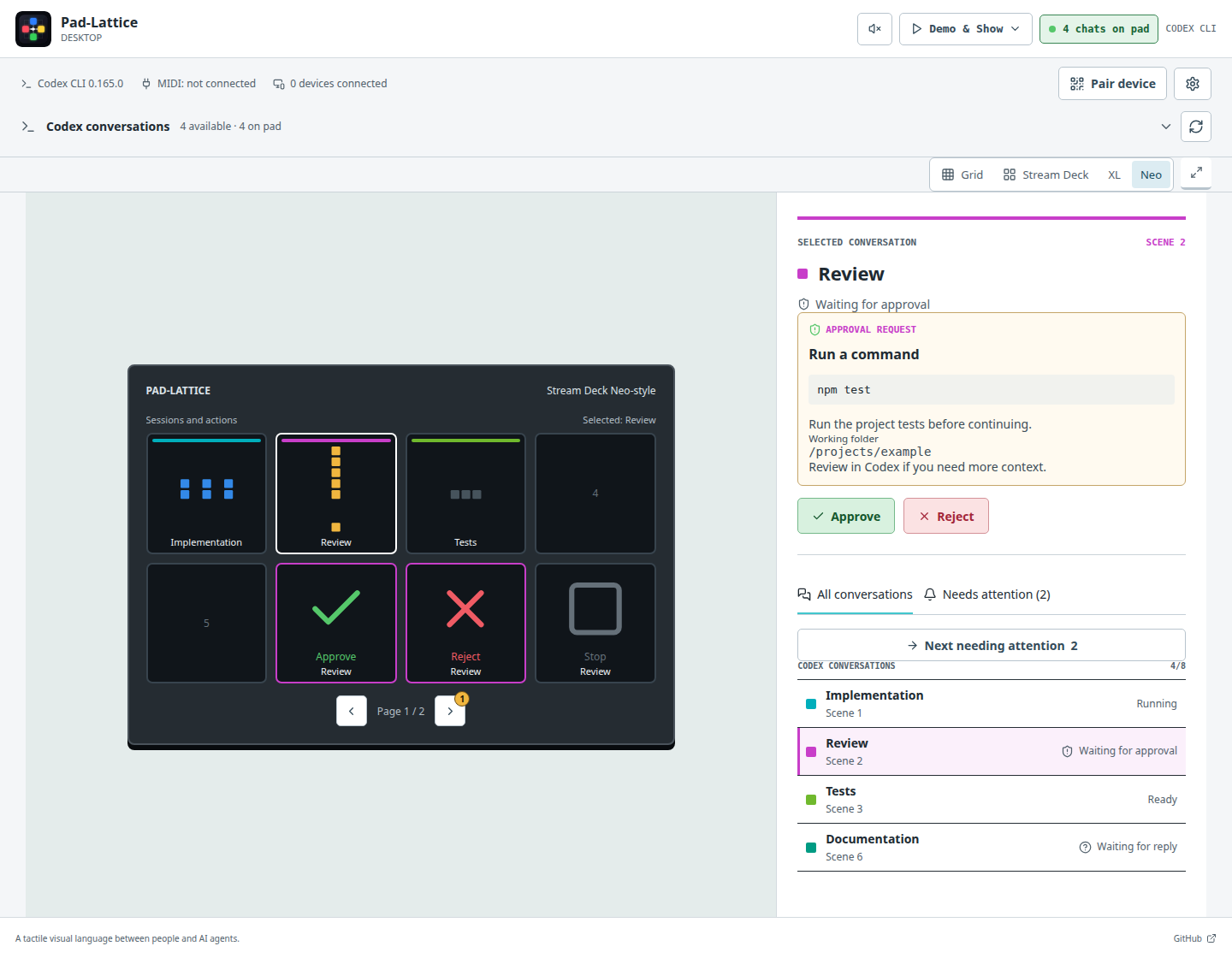
The page arrow's count points to a waiting chat; changing pages does not approve anything.
Connect
- Download
pad-lattice-0.2.0.streamDeckPluginfrom the v0.2.0 release assets. Open it on the computer running Elgato Stream Deck 7.1+ to install it. - Open Pad-Lattice and connect your Codex conversations.
- In Elgato's profile menu, choose the Pad-Lattice profile for your model, or add a Pad-Lattice > Session key to your own layout.
- In Pad-Lattice, open Settings > Devices > Stream Deck > Pair device.
- Select any Pad-Lattice key in Elgato's software. Enter the displayed address and one-use PIN, then press Pair. Pair once for the whole plugin.
The starter layout assigns session numbers already. For a custom layout, set a different Session slot on each Session key and add the three action keys.
The plugin requires macOS 13 or later or Windows 10 or later, with Elgato Stream Deck 7.1 or later. The plugin does not target Linux, but the Pad-Lattice bridge can run on a supported Linux or macOS computer. On the same computer, use the displayed localhost address; no network sharing is needed. If the bridge is in a VM or on another computer, follow Connect Screens and use its reachable private IPv4 address.
Developers can build the installer from source. Development builds also include it in the Build desktop installers artifacts.
What to Expect
- Dim action: unavailable for the selected session. It does nothing.
- Selection changed before a press arrived: the action is rejected. Check the updated selection and press again; approvals are never retried automatically.
- Connection lost: keys lose their live state and controls are disabled.
- Plugin or Pad-Lattice restarted: generate a new PIN and pair again.
- Pairing fails: check the address and generate a fresh code. The plugin shows an error instead of repeatedly retrying the same PIN.
- Revoke access: removes the selected device in Desktop's paired-device list.
- Revoke paired devices: removes all paired devices from the pairing window.
Read the actual request in Codex before approving. Physical keys do not display prompts or replace the conversation. Demo and Show work in the desktop and public browser layouts, not in the physical plugin. Dials and touch strips are not supported. Desktop can also show supported numbered Codex questions; the hardware plugin currently offers Approve, Reject, and Stop.
A compact alphabet for smaller LED grids remains a future design exploration; Stream Deck uses the existing full-resolution glyphs.