Connect a Phone, Tablet, or Laptop
A browser can control the chats connected to Pad-Lattice. It does not start another agent: every surface shares the same selected conversation.
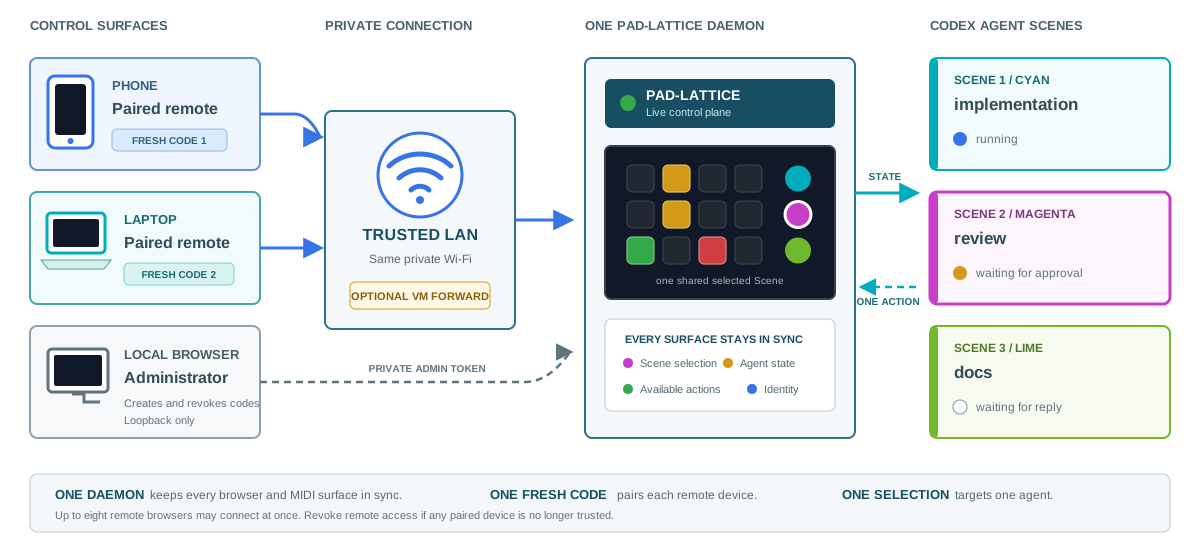
Connect the First Device
- Keep Pad-Lattice open on the computer running Codex. Connect both computers or devices to the same trusted private network.
- Open Settings > Devices > Browsers > Network setup, enter the computer's private IPv4 address, and choose Enable network access.
- The pairing window opens automatically with a fresh QR code and PIN.
- Scan the QR code, or open the displayed address and enter its PIN.
- Wait for Pad connected. If no sessions appear, connect a chat in the desktop app.
Each code works once and expires after five minutes. A localhost address only works on the computer running Pad-Lattice, not on your phone.
Pairing allows available actions, including approvals. Network traffic is not encrypted. Do not expose the service to the internet or use public Wi-Fi.
Add More Browsers
Up to eight remote browser connections can use the service at once. Open Settings > Devices > Browsers > Pair device for each additional device; a used PIN cannot pair another one.
Selection is shared. Check the selected chat before acting, especially if someone else is using another surface.
Answer Codex Questions
Question sharing is optional and off by default. Without it, paired browsers still show session colors and states, switch chats, and approve, reject, or stop when those actions are available. Answer multiple-choice questions in Codex or the Pad-Lattice desktop app instead.
To read and answer those questions from a paired browser, enable Settings > Devices > Browsers > Share Codex questions with paired browsers. Question text then travels over the unencrypted local network to paired devices that request it. Use only a trusted network. Free-text and secret answers stay in Codex; approval details stay in Desktop.
Share Demo and Show
Disconnect real sessions, then choose Demo & Show > Demo or Demo & Show > Show in the desktop app. Paired browsers follow the experience. Each browser has its own Sound toggle, initially muted.
Only the desktop or local administrator page starts and stops playback. Paired browsers can answer Demo prompts; Show is read-only. They have no Demo & Show panel or playback controls; sound and disconnect stay in the toolbar.
Disconnect and Revoke
On the phone or tablet, the unplug icon in the toolbar is Disconnect this device. It disconnects only that browser tab and keeps its pairing. Select Reconnect to return; other devices and Codex sessions keep running. Reloading the page also reconnects.
Settings > Devices > Browsers lists paired devices and their connection status. Disconnect closes a device's connection; it can reconnect without pairing again. Revoke access removes its permission and requires a new PIN or QR code. Device labels come from the browser and are not verified identities.
Restarting Pad-Lattice invalidates all pairings. Enable network access again to open a fresh QR/PIN, then use it on your phone. Revoke paired devices in the pairing window removes every paired browser and Stream Deck connection at once.
Running Inside Parallels Desktop
With Shared Network, your phone reaches the Mac, which forwards the connection to the VM. Both addresses are needed.
- Find the VM address with
hostname -Iinside Linux. - On the Mac, find its LAN address in System Settings > Wi-Fi > Details > TCP/IP.
- In Pad-Lattice, open Settings > Devices > Browsers > Network setup and enable VM shared network. Enter the VM address, the Mac address, and port 8001.
- In Parallels Shared Network settings, add a TCP forwarding rule: Mac port 8001 to the VM address, destination port 8001.
- Choose Enable network access. A fresh QR/PIN opens automatically.
The QR code should contain the Mac address, not
127.0.0.1.
For example, VM 10.211.55.4 and Mac 192.168.1.43 produce the phone
address http://192.168.1.43:8001. Use your own current addresses.
Addresses and port are remembered, but network access must be enabled again after restarting the app. Use the same source and destination port in Parallels. Do not add router forwarding or expose this port to the internet.
Bridged networking is another option: use the VM's LAN address directly, without the shared-network checkbox or port forwarding.
Quick Troubleshooting
| Problem | Check |
|---|---|
| Page does not open | Address, Wi-Fi, firewall, and VPN settings. A VM may need forwarding. |
| PIN rejected | Generate a fresh code; it may be expired or already used. |
| Connected, but no agents | Connect a chat in Desktop, or follow CLI Setup. |
| Previously paired device disconnected | The service may have restarted or its pairings been revoked. |
See Troubleshooting for other problems.