Desktop Pad
Connect your open Codex CLI chats and control them from the on-screen pad. Install includes Python and the local service; install and authenticate Codex CLI separately on the same computer.
Find Conversations
Select Connect beside a chat under Codex conversations. Its Scene number and color appear on the pad. Codex stays in its original terminal; no restart or hooks are needed.
The conversation picker stays open so you can connect several chats in one pass. Select Codex conversations or press Escape inside the picker to collapse it.
Use Refresh chats to update the list of conversations loaded by Codex on this computer and OS account. Start Codex normally; no wrapper is required. A VM cannot discover chats on its Mac host.
The list separates available conversations from those on the pad. If Codex is unavailable, click its status at the top to open settings, check the executable, and select Check again. An empty conversation list is not an installation error. Connection errors link to Diagnostics for a shareable report.
Disconnect releases the pad slot without stopping Codex. Closing Scene 2 leaves a gap; Scene 3 keeps its number and color. A newly connected chat can reuse the gap. Removing the selected chat clears the selection; it does not silently target another chat.
Codex may keep a conversation listed after its terminal closes. Use Disconnect to release its Scene, or the trash icon to disconnect and hide the entry without deleting Codex history or stopping its work. Restore removed conversations brings hidden entries back; hiding lasts for the current app session.
Use the Live Pad
Choose Grid, Stream Deck, XL, or Neo above the pad. Each controls the same selected conversation; switching layouts does not reconnect sessions or change devices. The choice is saved and stays available when the pad is maximized. These are on-screen layouts, not hardware connections. No controller is needed to use any of them; connect physical devices separately in Settings. On Neo, a steady count beside a page arrow indicates conversations on that page that need attention; it does not change the selected conversation.
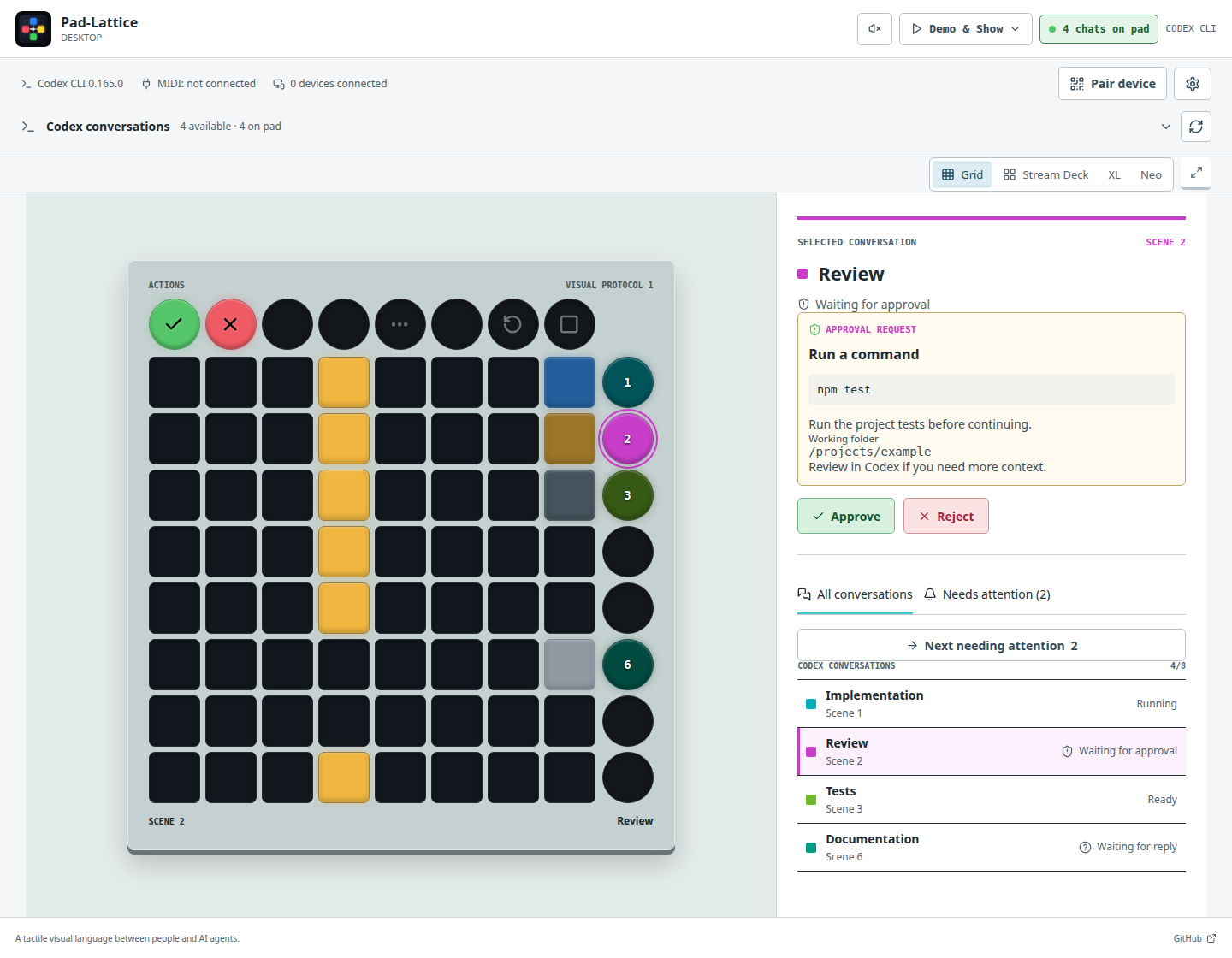
Current desktop interface with simulated chats. Review needs approval; Tests is Ready.
- Select the chat's colored Scene button on the right, or its named Session key in a Stream Deck layout.
- Check Selected conversation and the approval details. If details are incomplete, review the request in Codex.
- Press a lit action when you want to approve, reject, or stop.
Only supported actions light up. When a connected Codex conversation sends a supported multiple-choice question, Desktop shows its numbered choices. Select an option or press its number to send it. For requests with multiple questions, choose an answer for each and select Send answer. Free-text and secret answers stay in Codex; question text is not shared with paired browsers unless you enable it in device settings. This uses an experimental Codex interface and may not cover every prompt. Connect the conversation before the question appears; answer in Codex if it is not shown. The selected Scene has a colored ring; its color also marks the selected conversation and its row in the list. How It Works shows the glyphs and controls.
For connected Codex CLI conversations, Desktop shows available command, reason, and working-folder details for the selected approval. File changes, additional permissions, missing or truncated details must still be reviewed in Codex. These details stay on Desktop and are not sent to paired surfaces.
Needs attention lists approvals first, then errors and conversations waiting for a requested reply, with time in that state. Idle chats show Ready, a dim dash, and do not count as needing attention. Select a row to bring that chat onto the pad; selection does not approve anything. All conversations keeps the usual Scene order. Next needing attention moves through the priority list without taking an action.
Child agents stay under their parent chat's Scene, including when Codex delegates work in Ultra. Their approval requests and questions flag the parent as needing attention even if the parent is still working. A single supported request can be answered from the pad; when several are pending, review them in Codex so an action cannot target the wrong request. Children do not use extra Scene slots.
If a connected Codex session or MIDI device disconnects unexpectedly, Desktop shows a notice. Refresh the chat list or device settings and reconnect; actions are never repeated automatically.
| Control | What it does |
|---|---|
| Maximize pad | Hides setup panels and enlarges the pad. |
| Restore workspace or Escape | Returns to the full view. |
| Refresh chats | Updates the conversation list. |
| Settings > Reload interface | Reloads the window without disconnecting chats. |
Connect a Launchpad
Settings > Devices groups connections into Browsers, MIDI controllers, and Stream Deck, with a connected count for each. Browser and Stream Deck pairing share one network configuration.
Connect it over USB, then choose Settings > Devices > MIDI controllers > Connect. If automatic detection cannot choose a device, select its profile and ports. Experimental profiles must be selected explicitly.
See Novation Launchpad for models and the control diagram. Disconnecting MIDI does not end your chats; the virtual pad keeps working.
To check an unfamiliar controller, disconnect chats and MIDI, then select explicit ports and use Hardware test in the same settings page. Compare the lights with the preview and press each requested hardware control. You can stop at any time and export a report. See Device Testing.
Connect a Stream Deck
Open Settings > Devices > Stream Deck for the plugin download, pairing, and connected plugins. The plugin includes editable 15-key, XL, and Neo layouts; customize keys in Elgato's software, not the MIDI page. On the same computer, pair with the displayed address and PIN; network access can stay off. The plugin is experimental; a hardware-test wizard is not yet available for it. See Elgato Stream Deck.
Connect a Phone
Open Pair device in the toolbar, or Settings > Devices > Browsers. Enable network access; a fresh QR/PIN window opens automatically. Both devices must be on the same trusted network. The paired-device list lets you disconnect a device or revoke its access without affecting the others. The toolbar shows the live connected-device count; select it to open the list. Network enabled means pairing is available, not that a phone is connected. Follow Connect Screens for the QR/PIN steps.
Try Demo and Show
Disconnect real sessions, then choose Demo & Show > Demo or Demo & Show > Show. Enable Sound for audio. Back to live pad ends playback.
Demo uses two simulated agents: Reviewer (Scene 1) for approval, then Tests (Scene 2) for rejection. Desktop highlights each control with a Your turn cue. The public browser Demo plays the same steps automatically. In Desktop, Try a sample Codex question lets you explore numbered choices without sending an answer to Codex.
Show is an audiovisual exhibition, not an agent simulation. Its grid and outer lights form one animation; their colors do not represent connected chats. In Stream Deck-style views, 8, 15, or 32 keys display a reduced version of the grid. The same Demo and Show work in all four desktop layouts. This does not mean the physical Stream Deck plugin supports Demo or Show.
Demo & Show is disabled while real sessions are connected. Connecting a session during playback also returns the pad to live control.
Preferences and Closing
Choose Light or Dark under Settings > Appearance & sound. The pad stays dark in both themes to preserve its LED colors.
Theme, sound, surface layout, pad size, MIDI selections, and the Codex executable path save automatically in the app's settings folder, not your project. Connections and network pairing are not restored automatically.
If Codex is not found, choose it under Settings > Codex. The app reports whether the installed version has been tested with this integration.
Settings > About lists the app version, project links, license, and core third-party library credits. Bundled dependency notices opens the collected license texts. Copy diagnostics copies versions, connection counts, and failed operation names, without prompts, tokens, device names, or private paths.
If the connection drops, stale actions clear and a status banner appears, including in maximized mode. Select Reconnect when Desktop is available again; the browser does not keep retrying. Revoked access requires pairing again.
Minimize the window to leave Pad-Lattice running. Closing it stops its service and releases MIDI; your Codex terminals remain open. Do not run a separate Pad-Lattice daemon alongside the desktop app.