Install In Excel For Windows
Use this path when the scanner writes directly into Microsoft Excel on Windows.
Requirements
- Microsoft Excel for Windows with macros enabled.
- The single VBA module file:
ParseEncodedString.bas. - A macro-enabled workbook (
.xlsm).
The module is pure VBA. It does not require ActiveX references or VBScript.RegExp.
Use ParseEncodedString.bas for import. Excel's VBA file browser expects .bas for standard modules.
You do not need to download the full repository for Excel use. Download only ParseEncodedString.bas. If your browser saves it as ParseEncodedString.bas.txt, rename it to ParseEncodedString.bas before importing.
Import The VBA Module
- Open Excel.
- Create or open the workbook where the scanner will write codes.
- Save it as an Excel Macro-Enabled Workbook (
.xlsm). - Download
ParseEncodedString.bas. - Press
Alt+F11to open the Visual Basic editor. - Open Project Explorer with View > Project Explorer if the project tree is not visible.
- In Project Explorer, select
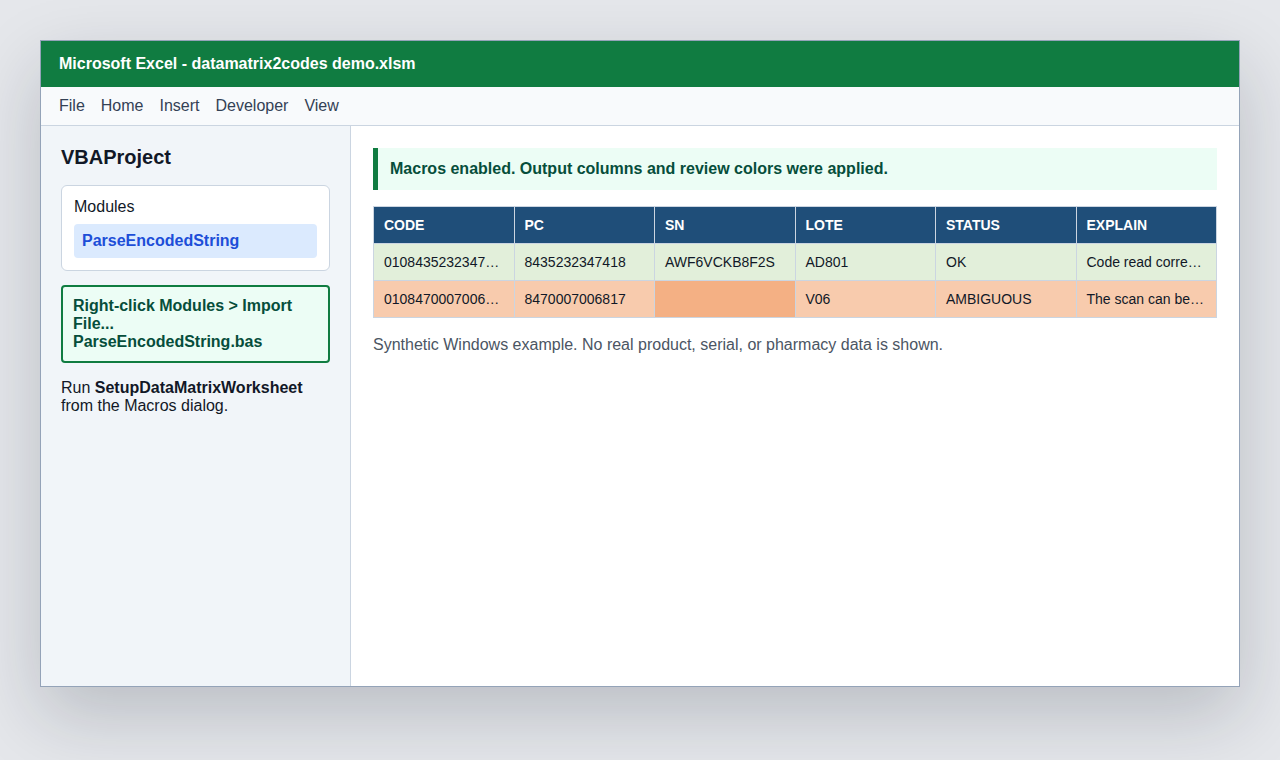
VBAProject (your-workbook-name.xlsm). - Use File > Import File... and select the downloaded
ParseEncodedString.bas. - If you do not see Import File..., right-click the workbook project or the
Modulesfolder in Project Explorer and choose Import File.... - Confirm that a module named
DataMatrix2CodesModuleappears underModules. - Save the workbook.
Next Step
After the module is imported, follow Excel Quick Start. That page covers the scanner workflow, including when to run DataMatrix2Codes.
Macro Security
If Excel opens the workbook in Protected View, enable editing and enable macros only for workbooks you trust. If Windows blocks the file because it came from the internet, unblock it from the file properties dialog or place it in a trusted location approved by your organization.
If Import Is Still Hidden
Use the manual fallback:
- In the Visual Basic editor, use Insert > Module.
- Open
macro/ParseEncodedString.basin Notepad or another text editor. - Copy the code from
Option Explicitdownward into the new module. Skip the firstAttribute VB_Name = ...line when pasting manually. - Save the workbook as
.xlsm.
Validate The Module
Run RunDataMatrixSelfTest after importing the module. A passing result means the Excel implementation matches the current fixture behavior.